
How to Import Your AI Memories (When You Start Using the Capacity Command Center)

How to Bring Your AI History With You (When You Start Using the Capacity Command Center)
If you've been using ChatGPT, Gemini, Copilot, or any other AI tool for the past year or two, you've built up something valuable — even if it doesn't feel like it. Those conversations where you figured out how to write a grant summary. The thread where you nailed the tone for your annual report. The back-and-forth that helped you draft donor thank-you emails in half the time.
That context is useful. And when you start using the Capacity Command Center (or a white-labeled version your organization has set up), you don't have to start from scratch.
Why This Matters
Most people who've been using AI casually have developed preferences and patterns they don't even realize they have. You've probably already figured out:
How you like things written (tone, length, format)
What kind of prompts get you the best results
Which tasks AI helps you with most
The specific context about your role, your organization, or your programs that you end up re-explaining every time you start a new chat
Every time you switch tools or start a new conversation, you lose all of that. The AI Prompt Coach in the Capacity Command Center is designed to hold that context for you — but it needs you to bring it in.
Think of it like onboarding a new colleague. The more you can share up front about how you work, the faster they're useful.
Step 1: Export or Summarize What You've Already Built
Most AI tools don't have a clean "export my preferences" button, but you can use the tools themselves to generate a summary of what you've figured out together. The ask is the same regardless of which tool you've been using.
The Universal Export Prompt
Open a conversation in whatever AI tool you've been using most and paste this:
"I'm moving to a new AI tool and I want to bring my preferences and context with me. Based on everything you know about me — our conversation history, any memory or custom instructions you have — can you write a summary that a new AI assistant could use to understand: (1) my role and organization, (2) the types of tasks I use AI for most, (3) my communication preferences (tone, length, format), (4) any recurring context I tend to provide (programs, audiences, deadlines, etc.), and (5) prompts or approaches that have worked well for me. Write it as a profile, not a conversation."
Save the output. This is what you'll bring into the AI Prompt Coach.
If you've only had a handful of conversations with a tool, the summary might be thin — that's okay. Even a few bullet points about your role and preferences are better than nothing.
Before You Run the Prompt: Grab Your Platform-Specific Settings
Some tools store preferences in specific places that the AI might not reference on its own. It's worth grabbing these separately and including them with your export.
ChatGPT: Go to Settings → Personalization → Custom Instructions. Copy both fields ("What would you like ChatGPT to know about you?" and "How would you like ChatGPT to respond?"). Then check Settings → Personalization → Memory for any saved memory items — these are short statements ChatGPT has stored about you over time.
Claude: If you've been using claude.ai, Claude may have stored memories from past conversations. You can ask Claude what it remembers about you, or check your memory settings in the sidebar.
Gemini / Copilot: These tools don't have a dedicated memory or custom instructions feature in the same way, so the universal prompt above is your best bet. If you use Copilot through Microsoft 365, your context is tied to your documents and account — the summary prompt will pull from your conversation history.
If You Haven't Used AI Tools Much (or Used Too Many to Export From)
If you've been bouncing between tools and don't have deep history with any of them, skip the export step and write your own profile. Here's a template:
My role: [Your title and what you do day-to-day]
My organization: [Name, mission, size, who you serve]
What I use AI for most: [e.g., drafting emails, summarizing documents, brainstorming program ideas, writing social media posts]
My communication preferences: [e.g., "I prefer concise responses," "I like when you ask clarifying questions first," "Keep it conversational, not corporate"]
Context that comes up often: [e.g., "Our fiscal year ends in June," "Our primary audience is families with children under 5," "I report to the Executive Director"]
What works for me in AI responses: [e.g., "Give me options, not just one answer," "Use bullet points for action items," "Don't over-explain things I already know"]
Even five minutes filling this out gives the AI Prompt Coach more to work with than starting from zero.
Step 2: Bring It Into the AI Prompt Coach
Now that you have your profile — whether it's an AI-generated summary or something you wrote yourself — here's how to put it to work.
Open the AI Prompt Coach and paste the summary response from the other tool, along with the context below ("Here's a summary…"
If your tool gave you a file instead, you can upload that using the paperclip icon
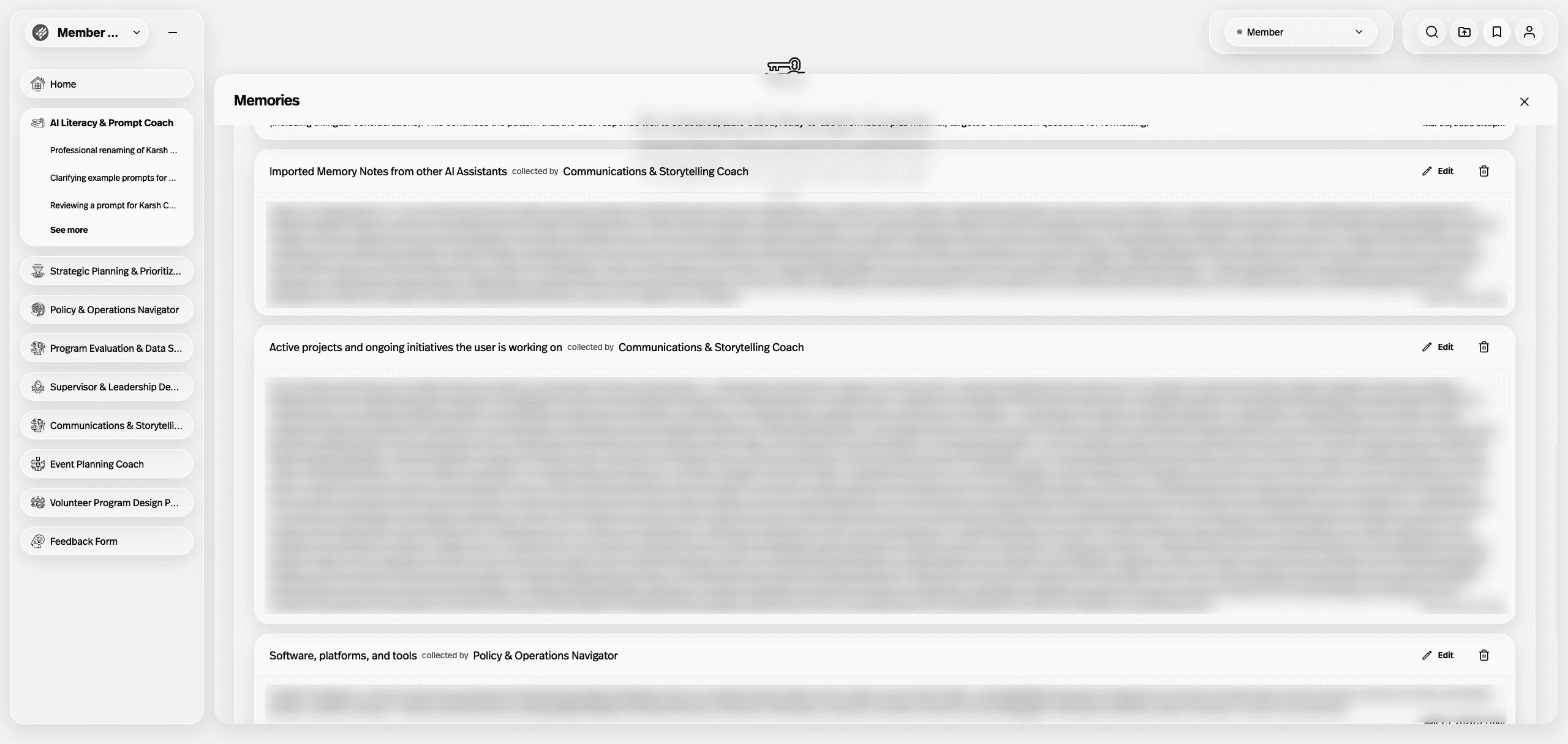
The coach will summarize what it learned, and store it in the Command Center "Memories"
View or edit these memories at any time with the bookmark icon in the top right when you're logged in.
What to say when you paste it in:
"Here's a summary of my work context and AI preferences from [ChatGPT/Gemini/etc.]. Can you review this and let me know if you have any questions before we start working together? I'd also like your help refining my prompts based on what I've shared."
The AI Prompt Coach is designed to help you get better at working with AI — not just answer questions. So bringing in your existing context means it can start helping you refine your approach immediately, rather than spending the first few sessions figuring out who you are and what you need.
Step 3: Refine As You Go
Your first import won't be perfect, and that's fine. As you use the AI Prompt Coach, you'll notice gaps — things the summary missed, preferences that have changed, new tasks you're using AI for.
A few things to revisit after your first week or two:
What's missing from your profile? If you find yourself re-explaining something in every session, that's a signal to add it to your context.
What's changed? Maybe you used to prefer long-form responses, but now you want bullets and brevity. Update your preferences.
What prompts are working? When you find a prompt that gets you a great result, save it. The AI Prompt Coach can help you build a library of go-to prompts for your most common tasks.
You can always paste in an updated profile or ask the coach to help you revise it. This isn't a one-time setup — it's something that gets better the more you use it.
The Point
You've already put in the work of figuring out how AI fits into your day. That learning has value, even if it happened in messy, scattered conversations across three different tools. Taking 15 minutes to pull it together and bring it into a system designed for your workflow means you're not starting from scratch — you're starting from experience.
[If you haven't tried the Capacity Command Center yet, sign up for a free trial here: ccc.nonprophet.ai. If your organization has a custom-branded version, check with your admin for access.]
Read more articles


The Prophet of Many for the Mission of One. Yours.
Copyright © 2026 Nonprophet Advisors